Hi guys. It's been a very long time since I've posted anything on this blog. Main reason being that the Galaxy S2 is now over 2 years old, and things like the S3, Note 2 and S4 have all taken over the spotlight!
My 2 year contract with Vodacom expires on 31 August, and then I'm moving over to CellC - main reason for that, the reception in my house is so poor with Vodacom, that I can hardly make and receive calls at all. Complaining numerous times, directly to Vodacom as well as on Hello Peter didn't yield any results at all. I even suggested maybe installing a signal booster in my house at my own expense, but nothing helps with them.
So, CellC has some great deals on handsets, so even if their reception is just as bad at my house, at least I'll be getting more and paying less. The lesser of two evils if you will...
Anyway, with only a couple of days remaining with my S2, I was greeted with the Software Update notification this morning. Yes, it appears that Android Jelly Bean 4.1 has finally been released in South Africa for the Samsung Galaxy S2.
I really enjoyed ICS on my phone, made such a huge difference over Gingerbread. Only gripe I had though, was the Swype keyboard kept malfunctioning, and I kinda got used to it, so that was a bummer. Had to buy all kinds of 3rd party keyboards, but nothing stuck in the end :(
Jelly Bean is now installing as I type this post. Will see what a difference that makes.
Also, since I won't be having my S2 for much longer since I'm upgrading in a few weeks, this is now my final post on this blog.
Thank you all for visiting and reading my ramblings. Maybe I'll do something similar with whatever handset I'm getting next!
If you haven't already, please follow me on Twitter - I promise I'm not one of those people who tweets every 5 seconds!
Cheers!
Sunday, August 18, 2013
Tuesday, September 4, 2012
3 Premium Gameloft games on sale for $0.99
Gameloft is one of the biggest mobile game developers, and three of their tops games are on sale currently :)

Yup, Modern Combat 3, Gangstar Rio and NOVA3
Get Modern Combat 3
Get Ganstar Rio
Get NOVA3
Not sure how long they'll be on special though, so jump quick quick!

Yup, Modern Combat 3, Gangstar Rio and NOVA3
Get Modern Combat 3
Get Ganstar Rio
Get NOVA3
Not sure how long they'll be on special though, so jump quick quick!


Thursday, August 30, 2012
Free Ringtones, SMS Notifications and Wallpapers with Zedge
Back in the day when I still had my Sony Ericsson phone, I used to visit the Zedge website to get themes and stuff like that for it. Ahh fond memories hehe...
I have seen the Zedge app in the Play store a couple of times, but never really bothered to check it out, but this morning I decided to download it and see what they have, and I was not disappointed.
I now have a new ringtone that sound exactly like the theme song for the very awesome Game of Thrones!!
Also got a bitchin new wallpaper or two, and I just scratched the surface! Here are a few screen shots:


You can not only get ringtones, but also regular wallpapers, live wallpapers, notification alerts and even some games.
If you like customizing your phone with sounds and stuff like that, this app looks like the perfect one stop shop to satisfy your uncontrollable need to change your ringtone and/or wallpaper on a daily basis :)
Get it here
I have seen the Zedge app in the Play store a couple of times, but never really bothered to check it out, but this morning I decided to download it and see what they have, and I was not disappointed.
I now have a new ringtone that sound exactly like the theme song for the very awesome Game of Thrones!!
Also got a bitchin new wallpaper or two, and I just scratched the surface! Here are a few screen shots:



You can not only get ringtones, but also regular wallpapers, live wallpapers, notification alerts and even some games.
If you like customizing your phone with sounds and stuff like that, this app looks like the perfect one stop shop to satisfy your uncontrollable need to change your ringtone and/or wallpaper on a daily basis :)
Get it here
Wednesday, August 29, 2012
My top 5 daily used Android apps
I decided to make a post to show which apps I tend to use on an almost daily basis.
1. Whatsapp
If you don't know what Whatsapp is, then you're missing out - it's a free messenger, which allows you to send IM's (instant messages) to any of your contacts who also has the app installed. The nice thing though, is that you get Whatsapp on different platforms as well, for example Android, iOS, Blackberry, Nokia and Windows Mobile 7 and up.
Not only very handy for quickly, and best of all, CHEAPLY (uses only a little bit of data), sending messages to anyone, you can also send photos and videos, and, if your phone has a GPS, your exact location at that time, which the recipient can open on their maps app.
If I were to get a new phone, this would pretty much be the first app I install!
Get it here
2. Steam
I like playing games on my PC, and one of my favourite things on my PC is Steam - it's a game delivery platform, through which you can legally buy games, which you can then download and play. The best part of Steam is that they have constant specials on various games. Plus there's the yearly Steam Summer Sale, which tend cost me too much money every time!
Steam on Android is basically just a mobile version of the desktop app (though you can obviously not play your games on your phone...), so you can quickly see what's on sale when you're out and about, chat with your friends on steam and all kinds of stuff like that.
As you can see below, Homefront is on sale for less 75% - I've never played the game, but I'm very tempted to actually buy it! $5 for a mainstream game like that sure is a bargain in anyone's book!


You can get Steam here
3. Tweetdeck
I used to like using Tweetcaster, but I wasn't that fond of viewing tweets of the people I follow on that. Then I did some searching, and discovered Tweetdeck. I now use this everyday to see what the people are saying. The other nice part about it is I've linked my Facebook feed to it as well, so I can view both of those updates on the one platform :)


The blue posts in the bottom screenshot are Facebook updates.
Only thing I'm not that fond of with this app is to tweet to certain people isn't very easy, I remember in Tweetcaster when you use the # or @ symbols it opens up a list of people you can choose to tweet to. Other than that, to stay up to date on what's going on in my Twitter stream, this is the app I prefer.
A last thing I want to add, it loads ALL the people you follow's tweets in the list, so if you are following lots of people, and you haven't checked it in a few days, it can take quite some time to scroll up to the latest tweets :)
Get it here
4. News24
This will probably only be for South Africans, since it's our biggest local news website's accompanying app. It has basically the exact same articles as the website, although you cannot view and make the comments on the articles, which isn't a bad thing. Most people tend to just share hate on any article.
I also find myself not liking to use this app, since the news is 98% of the time something bad, but I keep coming back for more to see what's going on in South Africa, and the rest of the world...


A very straightforward app, which does exactly what it is supposed to. Share all the bad news :(
Anyway, get it here
5. Google Chrome Browser
Last but not least, Chrome is probably my favourite new feature of the ICS update a few months back. It's Google's own browser, and boy does it just work!
As you saw above, I use Tweetdeck to stay up to date with my Twitter account, and a lot of the people I follow tend to post links to website, tapping on them always opens the link up in Chrome, and I haven't had a single issue on any website where I couldn't read the text or something like that.
If you are one of the lucky ones to have upgraded to Chrome, then this is a total must to replace the stock browser.
Get it here
To conclude this post, I'd like to invite you to post your favourite daily used apps below in the comments section, I am forever finding myself on the Google Play store to check out what's new on the market.
(sorry that I disabled Anonymous commenting, I was just getting too many spam comments!)
1. Whatsapp
If you don't know what Whatsapp is, then you're missing out - it's a free messenger, which allows you to send IM's (instant messages) to any of your contacts who also has the app installed. The nice thing though, is that you get Whatsapp on different platforms as well, for example Android, iOS, Blackberry, Nokia and Windows Mobile 7 and up.
Not only very handy for quickly, and best of all, CHEAPLY (uses only a little bit of data), sending messages to anyone, you can also send photos and videos, and, if your phone has a GPS, your exact location at that time, which the recipient can open on their maps app.
If I were to get a new phone, this would pretty much be the first app I install!
Get it here
2. Steam
I like playing games on my PC, and one of my favourite things on my PC is Steam - it's a game delivery platform, through which you can legally buy games, which you can then download and play. The best part of Steam is that they have constant specials on various games. Plus there's the yearly Steam Summer Sale, which tend cost me too much money every time!
Steam on Android is basically just a mobile version of the desktop app (though you can obviously not play your games on your phone...), so you can quickly see what's on sale when you're out and about, chat with your friends on steam and all kinds of stuff like that.
As you can see below, Homefront is on sale for less 75% - I've never played the game, but I'm very tempted to actually buy it! $5 for a mainstream game like that sure is a bargain in anyone's book!


You can get Steam here
3. Tweetdeck
I used to like using Tweetcaster, but I wasn't that fond of viewing tweets of the people I follow on that. Then I did some searching, and discovered Tweetdeck. I now use this everyday to see what the people are saying. The other nice part about it is I've linked my Facebook feed to it as well, so I can view both of those updates on the one platform :)


The blue posts in the bottom screenshot are Facebook updates.
Only thing I'm not that fond of with this app is to tweet to certain people isn't very easy, I remember in Tweetcaster when you use the # or @ symbols it opens up a list of people you can choose to tweet to. Other than that, to stay up to date on what's going on in my Twitter stream, this is the app I prefer.
A last thing I want to add, it loads ALL the people you follow's tweets in the list, so if you are following lots of people, and you haven't checked it in a few days, it can take quite some time to scroll up to the latest tweets :)
Get it here
4. News24
This will probably only be for South Africans, since it's our biggest local news website's accompanying app. It has basically the exact same articles as the website, although you cannot view and make the comments on the articles, which isn't a bad thing. Most people tend to just share hate on any article.
I also find myself not liking to use this app, since the news is 98% of the time something bad, but I keep coming back for more to see what's going on in South Africa, and the rest of the world...


A very straightforward app, which does exactly what it is supposed to. Share all the bad news :(
Anyway, get it here
5. Google Chrome Browser
Last but not least, Chrome is probably my favourite new feature of the ICS update a few months back. It's Google's own browser, and boy does it just work!
As you saw above, I use Tweetdeck to stay up to date with my Twitter account, and a lot of the people I follow tend to post links to website, tapping on them always opens the link up in Chrome, and I haven't had a single issue on any website where I couldn't read the text or something like that.
If you are one of the lucky ones to have upgraded to Chrome, then this is a total must to replace the stock browser.
Get it here
To conclude this post, I'd like to invite you to post your favourite daily used apps below in the comments section, I am forever finding myself on the Google Play store to check out what's new on the market.
(sorry that I disabled Anonymous commenting, I was just getting too many spam comments!)
Just for Fun: Zombiebooth
Ok, this is not the most useful app out there, but a fun thing to fiddle around with anyway...
Ever wanted to see how you would look if you were a zombie? Get Zombiebooth, take a picture of yourself, and the app will turn you into you. Not just a still photo either, you move around, make zombie sounds and when you touch the screen, your zombie self will start munching on your finger!


Very pretty hey? Shaking the phone generates a different zombie, and you can take a photo with the app itself, or select an existing photo on your phone.
Yup, useless indeed, but fun to show to your friends :)
Get it here
Ever wanted to see how you would look if you were a zombie? Get Zombiebooth, take a picture of yourself, and the app will turn you into you. Not just a still photo either, you move around, make zombie sounds and when you touch the screen, your zombie self will start munching on your finger!


Very pretty hey? Shaking the phone generates a different zombie, and you can take a photo with the app itself, or select an existing photo on your phone.
Yup, useless indeed, but fun to show to your friends :)
Get it here
Game Review: Dungeon Village
Hi guys, it's been quite a long time since I posted something, so I decided to get right back to it again. A few weeks ago I was a bit bored, and decided to give Dungeon Village a try, luckily they have a demo version available as well.
A while back, I did a review on Game Dev Story, and Dungeon Village is made by the same developer. You can almost immediately see the similarity on how the game looks and so on.
After playing it for about 10 minutes, I just couldn't resist and bought the full version.
Here are a few screen shots:


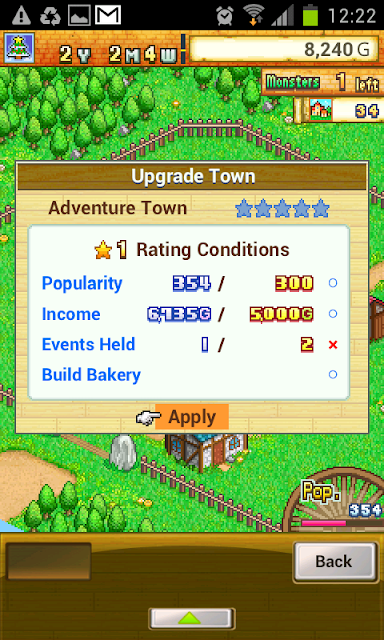

These are just some of the many things that can happen in the game.
You are basically the mayor of a small town, and adventurers come to your town to fight monsters, level up and spend gold.
There are so many aspects to this game, I find it hard to decide on where to begin.
When you start, you only have a handful of buildings, and almost immediately an adventurer wanders into your little town to come and check it out. They wander into the wilderness on a regular basis, and fights with the various kinds of monsters the game features. As they win battles, they level up, making them stronger, and increasing their satisfaction and stuff like that.
Every time they kill a monster, you get some more money to spend on new buildings and items.
Then all of a sudden a quest pops up, and you can, for a fee, recruit some adventurers to go on this quest. It might be something like old ruins they go and explore, or a monster mob just outside your town walls that they must defeat.
If one of your adventurers succumb, they don't die permanently, but slowly regain their health, after which they'll fight on. While recovering, if another adventurer happens to walk past, he will pick up his fallen comrade and take him back to the inn, where he can recuperate a lot quicker.
While on a quest, a bar at the bottom of the screen appears, which represents the linear path of the quest. On the bar you'll find chests that contain loot, as well as monsters that need to be defeated before carrying on. It's as simple as that!
The loot can be given to your adventurers as presents (boosting their stats and satisfaction), or even to your buildings to increase their appeal, how much they charge and the quality of their wares. Even the buildings can level up, they simply need to get a certain amount of visits from your adventurers!
As you go about managing all this, your town will increase in popularity, which in turn will attract more adventurers. Eventually, if your adventurers are satisfied enough in your town, they'll request for you to build them a house, and you can start earning taxes from them!
Later on you can hold events as well, which either boosts stats of your people, or popularity of the town. Every now and then you'll even get to fight against a boss, which not only gives lots of experience to those who take part in the battle, but also a nice big pile of gold! You even get medals that you can award your people at the end of each year, boosting their stats even more.
Now, I've already written quite a lot above, but this is barely touching what this game is all about! It has a very similar feel to Game Dev Story, but that is definitely not a bad thing. I'm glad I paid the $4.99 for it, it was money well spent!
Get the demo, or Lite version here
Or buy the full version (which you'll do after playing the Lite version) here
Till next time (I promise it will be quicker this time!)
A while back, I did a review on Game Dev Story, and Dungeon Village is made by the same developer. You can almost immediately see the similarity on how the game looks and so on.
After playing it for about 10 minutes, I just couldn't resist and bought the full version.
Here are a few screen shots:


These are just some of the many things that can happen in the game.
You are basically the mayor of a small town, and adventurers come to your town to fight monsters, level up and spend gold.
There are so many aspects to this game, I find it hard to decide on where to begin.
When you start, you only have a handful of buildings, and almost immediately an adventurer wanders into your little town to come and check it out. They wander into the wilderness on a regular basis, and fights with the various kinds of monsters the game features. As they win battles, they level up, making them stronger, and increasing their satisfaction and stuff like that.
Every time they kill a monster, you get some more money to spend on new buildings and items.
Then all of a sudden a quest pops up, and you can, for a fee, recruit some adventurers to go on this quest. It might be something like old ruins they go and explore, or a monster mob just outside your town walls that they must defeat.
If one of your adventurers succumb, they don't die permanently, but slowly regain their health, after which they'll fight on. While recovering, if another adventurer happens to walk past, he will pick up his fallen comrade and take him back to the inn, where he can recuperate a lot quicker.
While on a quest, a bar at the bottom of the screen appears, which represents the linear path of the quest. On the bar you'll find chests that contain loot, as well as monsters that need to be defeated before carrying on. It's as simple as that!
The loot can be given to your adventurers as presents (boosting their stats and satisfaction), or even to your buildings to increase their appeal, how much they charge and the quality of their wares. Even the buildings can level up, they simply need to get a certain amount of visits from your adventurers!
As you go about managing all this, your town will increase in popularity, which in turn will attract more adventurers. Eventually, if your adventurers are satisfied enough in your town, they'll request for you to build them a house, and you can start earning taxes from them!
Later on you can hold events as well, which either boosts stats of your people, or popularity of the town. Every now and then you'll even get to fight against a boss, which not only gives lots of experience to those who take part in the battle, but also a nice big pile of gold! You even get medals that you can award your people at the end of each year, boosting their stats even more.
Now, I've already written quite a lot above, but this is barely touching what this game is all about! It has a very similar feel to Game Dev Story, but that is definitely not a bad thing. I'm glad I paid the $4.99 for it, it was money well spent!
Get the demo, or Lite version here
Or buy the full version (which you'll do after playing the Lite version) here
Till next time (I promise it will be quicker this time!)
Sunday, July 1, 2012
Game Review: Triple Town
As you all probably know by now already, I am always on the lookout for good games to waste some unwanted time when it creeps up on me unexpectedly, so I always go to the Editor's Choice section in the Play store, and for a change, I actually found a very very addictive little puzzle game called Triple Town.
It doesn't blow one's mind with super amazing 3d graphics or sound effects, but the whole idea behind the game keeps you wanting to come back to do it all over again!
The game works on a very simple concept of matching 3 items to produce 1 better item - matching 3 of those better items, produces yet another better one, and so forth. As you go on and match various items, you rack up points, which is also the very simple goal of the game - to get as big a score as you can before you fill up your available space.
For example, match 3 "grass" tiles, and you're rewarded with a "bush" tile - match 3 of those, and you get a tree, and so on. If you match more than 3 of the same item, you still get the better version, but that one just looks a bit different, and gives you more points.
To make it a little bit more challenging, the game throws evil bears at your little village, which blocks your path, but they are not without purpose however - trap a bear by surrounding it with tiles, then you kill it, which produces a tombstone - match 3 tombstones and you make a church.
Here are a few screen shots, but please don't you dare judge this game by how it looks, it's really very addictive, and will keep you coming back for more!

The free version of the game can be played, but you have a limited number of turns, or moves, available. You do start with 1500 turns, so you can play quite a few games to check it out. At the end of each game, depending on how well you fared, you get awarded with gold, with which you can buy items in the Store, but you can also buy additional turns to extend your free play.
Unlocking the game in full costs $3.99, which I gladly paid. Not only did this remove the limited amount of turns, but also added a few more maps on which to play. One of them, for example, doesn't have any nasty bears blocking your way as you strive to rack up those points and build a town worthy for the history books!
Here are some screen shots of that map:


Another cool little feature they added to the game is a special tile on which you can store items for later use - in the above screenshot, you'll see in the top left tile is a little robot, they are used to clear any tile on the field, handy to dispose of a ninja bear ;)
Triple Town is a perfect example of KISS (keep it simple stupid) - it is very easy to play, but can be quite tricky to master.
You unlock the full game from within the game, and they've even allowed you to play the game on all of your Android devices if you've already paid for it. (it's already on my Galaxy Tab too!)
Do yourself a favour, and get it here
Hope you enjoy this one, I really did, and still do!
It doesn't blow one's mind with super amazing 3d graphics or sound effects, but the whole idea behind the game keeps you wanting to come back to do it all over again!
The game works on a very simple concept of matching 3 items to produce 1 better item - matching 3 of those better items, produces yet another better one, and so forth. As you go on and match various items, you rack up points, which is also the very simple goal of the game - to get as big a score as you can before you fill up your available space.
For example, match 3 "grass" tiles, and you're rewarded with a "bush" tile - match 3 of those, and you get a tree, and so on. If you match more than 3 of the same item, you still get the better version, but that one just looks a bit different, and gives you more points.
To make it a little bit more challenging, the game throws evil bears at your little village, which blocks your path, but they are not without purpose however - trap a bear by surrounding it with tiles, then you kill it, which produces a tombstone - match 3 tombstones and you make a church.
Here are a few screen shots, but please don't you dare judge this game by how it looks, it's really very addictive, and will keep you coming back for more!

The free version of the game can be played, but you have a limited number of turns, or moves, available. You do start with 1500 turns, so you can play quite a few games to check it out. At the end of each game, depending on how well you fared, you get awarded with gold, with which you can buy items in the Store, but you can also buy additional turns to extend your free play.
Unlocking the game in full costs $3.99, which I gladly paid. Not only did this remove the limited amount of turns, but also added a few more maps on which to play. One of them, for example, doesn't have any nasty bears blocking your way as you strive to rack up those points and build a town worthy for the history books!
Here are some screen shots of that map:


Another cool little feature they added to the game is a special tile on which you can store items for later use - in the above screenshot, you'll see in the top left tile is a little robot, they are used to clear any tile on the field, handy to dispose of a ninja bear ;)
Triple Town is a perfect example of KISS (keep it simple stupid) - it is very easy to play, but can be quite tricky to master.
You unlock the full game from within the game, and they've even allowed you to play the game on all of your Android devices if you've already paid for it. (it's already on my Galaxy Tab too!)
Do yourself a favour, and get it here
Hope you enjoy this one, I really did, and still do!
Thursday, May 24, 2012
ICS Easter Egg
Hi guys, I was reading on some random website about Android in general, and came across a very cool Easter Egg for Ice Cream Sandwich. If you don't know what an "Easter Egg" is, well, that's basically a hidden feature the developers build into software, which you can get to by doing something specific. It has no real function, it's just something cool (and I guess to keep the developers from boring themselves to death).
The ICS Easter Egg is a very cool one, and here's how to get to it:
First, go to the settings screen, and tap on "About Phone" at the bottom, here you'll see this:

Now, repeatedly tap on "Android version", which after a while will bring you here:

Now, that's not all of it :) go ahead and tap and hold on the Ice Cream Sandwich droid there - enjoy!
Till next time!
The ICS Easter Egg is a very cool one, and here's how to get to it:
First, go to the settings screen, and tap on "About Phone" at the bottom, here you'll see this:

Now, repeatedly tap on "Android version", which after a while will bring you here:

Now, that's not all of it :) go ahead and tap and hold on the Ice Cream Sandwich droid there - enjoy!
Till next time!
Wednesday, May 23, 2012
ICS New Feature: Data usage
I've been playing around whenever I get the chance with my Galaxy S2 since I upgraded to Ice Cream Sandwich, and one new feature I'm crazy about is one where you can limit the amount of mobile data your phone is allowed to use!
So, without further ado, here's how to get to it: First, tap on the button to the left of the home button, which will bring up the following menu (you'll notice that it looks different to what it previously did...):

Tap on Settings, which will bring you to this screen, which also happens to look slightly different now:

The settings are now in various groups, which makes it a bit better to navigate. Anyway, the option we're looking for here is "Data usage" - so go ahead and tap on that, which brings you to this section:

As you can see, from here you can turn Mobile data on and off, and set a limit and even when this cycle is in effect. You can drag around the various lines and things you see there, to customize it exactly how you want it. This is the one feature I really missed from Gingerbread, so I'm really glad it's now included by default.
Scrolling down even shows you which apps use your data:
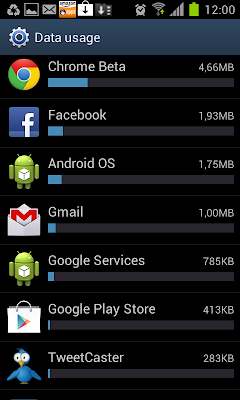
Very handy indeed, now you can see which apps are the big data hogs, and delete them if you find they are the ones you don't really use!
As I discover more cool features, I'll let you all know!
Till next time!
So, without further ado, here's how to get to it: First, tap on the button to the left of the home button, which will bring up the following menu (you'll notice that it looks different to what it previously did...):

Tap on Settings, which will bring you to this screen, which also happens to look slightly different now:

The settings are now in various groups, which makes it a bit better to navigate. Anyway, the option we're looking for here is "Data usage" - so go ahead and tap on that, which brings you to this section:

As you can see, from here you can turn Mobile data on and off, and set a limit and even when this cycle is in effect. You can drag around the various lines and things you see there, to customize it exactly how you want it. This is the one feature I really missed from Gingerbread, so I'm really glad it's now included by default.
Scrolling down even shows you which apps use your data:

Very handy indeed, now you can see which apps are the big data hogs, and delete them if you find they are the ones you don't really use!
As I discover more cool features, I'll let you all know!
Till next time!
Monday, May 21, 2012
ICS - my thoughts so far - and Chrome
Hi there everyone, this is just a quick post to share with you my initial thoughts on Ice Cream Sandwich, which I updated my phone to last Friday.
Although the update itself went through without a hitch, I did experience some minor issues at first, but these seem to have sorted themselves out. Some of them include things like the camera not wanting to work, or the phone just turning itself off without reason, but since Friday, none of those have been happening anymore.
Obviously it is a big upgrade to go from version 2.3 to version 4 with any software, and it is, I guess, a normal thing for the developers to move or change certain things. Some of them I just feel are unnecessary, like changing the way you take a screen shot for example. But, most of them are actually pretty cool, like for example, when you bring down the status bar, you used to have the option to either have the phone on silent, or not - now there's a third option, Vibrate. That I find quite handy!
The speed of the menus and all that seems to have improved, and so far the battery life also feels better! Also, I have noticed that text on the screen looks better too, don't know if I'm just imagining that, but it does look that way!
The first app I went out and installed was Google's own browser, Chrome, which is still in a Beta, and it's only available for devices with ICS on them!
I used it a little bit, and I'm just a big fan of Chrome in general, but so far, I really like it! I will, however, do a full review as soon as I get the chance! (only issue is flash support, which it lacks....)
If you want to get it for yourself in the meantime, do so by clicking here :)
Keep well people, and I'll post more soon!
Although the update itself went through without a hitch, I did experience some minor issues at first, but these seem to have sorted themselves out. Some of them include things like the camera not wanting to work, or the phone just turning itself off without reason, but since Friday, none of those have been happening anymore.
Obviously it is a big upgrade to go from version 2.3 to version 4 with any software, and it is, I guess, a normal thing for the developers to move or change certain things. Some of them I just feel are unnecessary, like changing the way you take a screen shot for example. But, most of them are actually pretty cool, like for example, when you bring down the status bar, you used to have the option to either have the phone on silent, or not - now there's a third option, Vibrate. That I find quite handy!
The speed of the menus and all that seems to have improved, and so far the battery life also feels better! Also, I have noticed that text on the screen looks better too, don't know if I'm just imagining that, but it does look that way!
The first app I went out and installed was Google's own browser, Chrome, which is still in a Beta, and it's only available for devices with ICS on them!
I used it a little bit, and I'm just a big fan of Chrome in general, but so far, I really like it! I will, however, do a full review as soon as I get the chance! (only issue is flash support, which it lacks....)
If you want to get it for yourself in the meantime, do so by clicking here :)
Keep well people, and I'll post more soon!
Friday, May 18, 2012
No Music Hub in SA - BAD SAMSUNG BAD BAD
One of the biggest problems I have with Samsung in general, is that they includes features on their devices, that gives you this:

This especially when before I bought the phone, I saw this exact feature, the Music Hub, advertised on their website.
And yes, even now after updating to ICS, this stupid useless app is still there, and is still not supported in South Africa.
I honestly don't know if it will ever become available in South Africa. Anyway, enough ranting for today! Keep well good people!

This especially when before I bought the phone, I saw this exact feature, the Music Hub, advertised on their website.
And yes, even now after updating to ICS, this stupid useless app is still there, and is still not supported in South Africa.
I honestly don't know if it will ever become available in South Africa. Anyway, enough ranting for today! Keep well good people!
Thursday, May 17, 2012
ICS in South Africa
I upgraded my Galaxy S2 to Ice Cream Sandwich yesterday, but that was only for Vodacom customers. MTN and CellC - you guys are next, and should have your update available by the end of today (18 May).
So far so good, haven't had any issues with the update, even my alarms were still in tact afterwards (hence me not oversleeping today, sadly!)
Subscribe to:
Posts (Atom)